

The Battlefield 6 Open Beta is finally here, and you may have noticed that Secure Boot is required to play the game on PCs. This can be an intimidating message to receive if you aren’t entirely sure what Secure Boot is, and it’s probably frustrating if you’re just looking to jump into the much-hyped shooter game. Don’t worry though, because we’re here to help you out!
I have a custom built PC, and had to enable Secure Boot on my own to be able to join in on the Battlefield 6 action too. I wrote down the steps I followed and did some extra research to help you find out more about Secure Boot, including how to enable it on your Windows 10 or 11 PC, along with troubleshooting tips for what to do when it isn’t working. Let’s cut to the chase, and get right into it.
What is Secure Boot, and what are the requirements?

Secure Boot is a feature on Windows 10 and 11 computers that guarantees the PC is launching only with safe software. This is a feature that is increasingly required to play competitive shooters online, as it does a great job at preventing cheaters from booting up cheat software during the startup process to circumvent cheat detection services. That’s why EA is making you enable it for Battlefield 6!
Secure Boot will only work on Windows 10 and 11 PCs. It also requires your motherboard to support UEFI firmware, which is a more modern version of traditional PC BIOS. BIOS are the things that run on your computer as soon as you turn it on, before Windows even launches! They’re responsible for everything at the root level, so it’s important to understand what’s going on with them. That said, let’s check you’re prepared to enable Secure Boot in the first place.
Press the Windows Key + R and type msinfo32 into the box that appears, then press Enter. Read the ‘System Summary‘ section, and find the ‘BIOS Mode‘ item. It should say UEFI, but if it says Legacy, you’ll need to start fiddling with some technical things like your Windows disk. That goes beyond the reach of this article, but click here to read up on how to change your BIOS mode and all the steps that come with that.
Start by checking your Secure Boot status

So, assuming your BIOS Mode is set to UEFI, you’re safe to check your Secure Boot status. Do the same thing as earlier, pressing the Windows Key + R, then type msinfo32 and press Enter. From here, find Secure Boot State, and read whether it says On or Off.
If it says Off, then now we need to start the process of enabling Secure Boot from scratch. However, if it says On, then you should be set to jump into Battlefield 6! If it doesn’t work though, try following the steps to enable Secure Boot again and then reset your system, just in case that refreshes some things.
How to enable Secure Boot from scratch
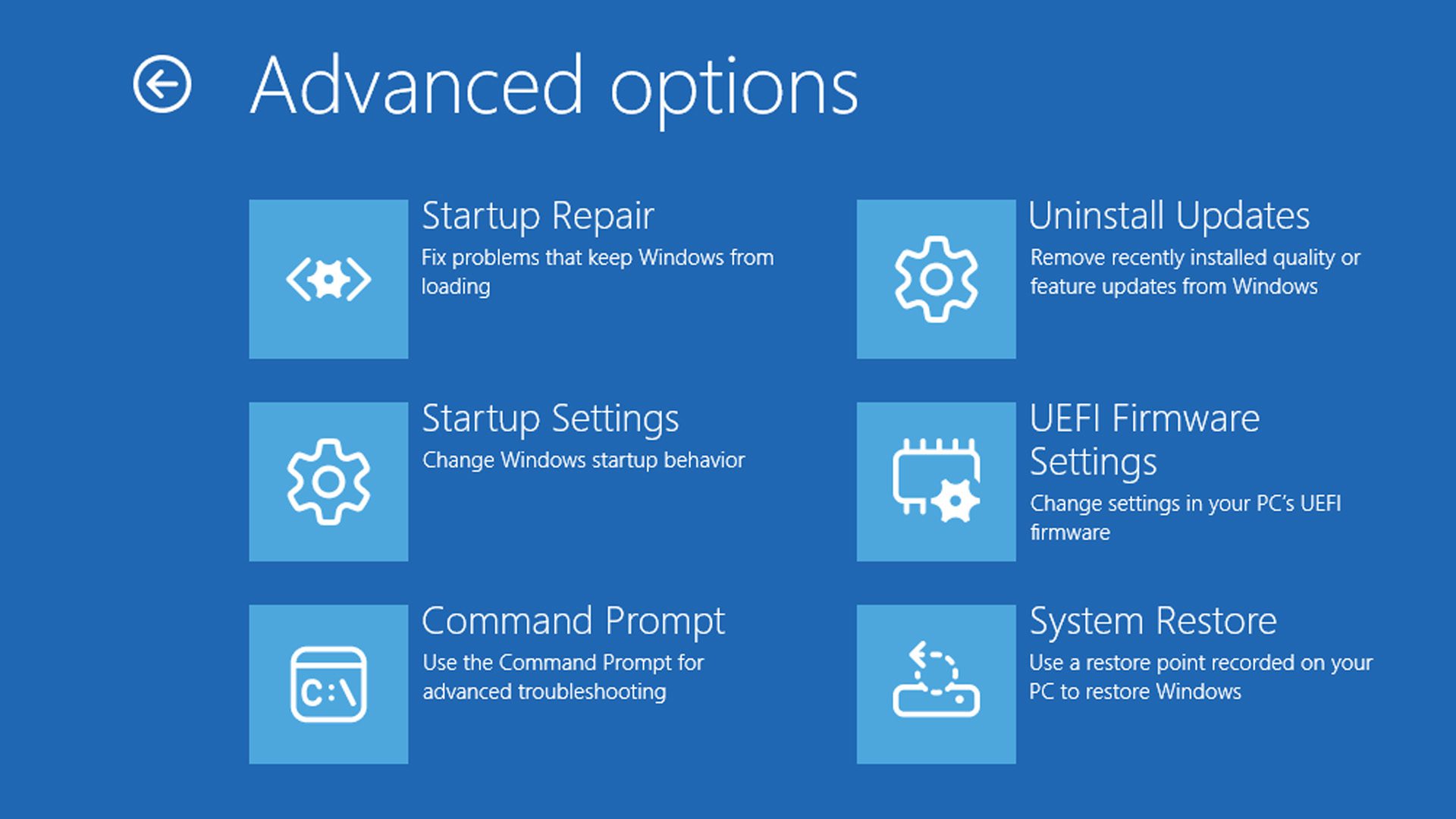
We want to play the expansive Battlefield 6 Open Beta, so first we need to get into your PC BIOS to make the change and enable Secure Boot. There are no risks to enabling it, so as long as you don’t change anything else we don’t advise then your PC will be safe, even though the process is intimidating.
There are two ways to boot your PC into BIOS. You can either restart your PC and then press the specific key that you’re prompted to press immediately as your PC starts, which is usually either F1, F2, F10, Delete or Escape depending on who makes your motherboard. Alternatively, go to the Settings menu on your PC, head to System, then Recovery and choose ‘Restart Now‘ where it says Advanced Startup. This will reset your PC into a blue screen menu. From here, click Troubleshoot, then Advanced options, and then UEFI Firmware Settings and click Restart. You’re now rebooting into BIOS, so get ready for the most intimidating menus ever!
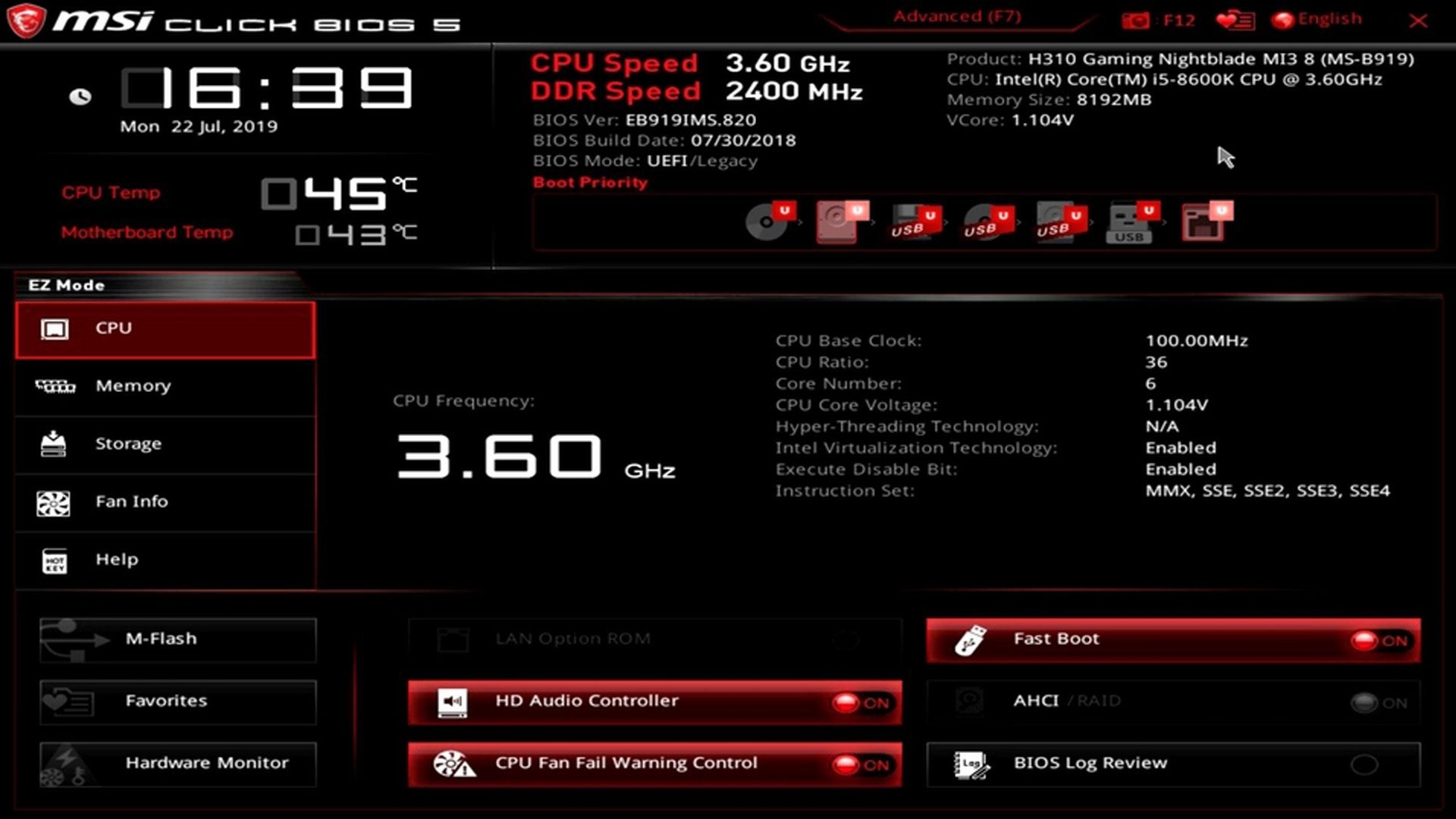
The menus and option you’ll have available to you in BIOS mode will be vastly different depending on your motherboard brand, and there are far too many to break down how every single one works here. That being said, we can try to describe in a universal way how to enable Secure Boot and what could go wrong. We need to find the Secure Boot setting in the menu labyrinth in front of you, and it’ll probably be under a tab labeled Security, Boot, Authentication or anything else relating to your PC security or startup. I have an MSI motherboard, so I clicked Advanced Mode, followed by Settings, Security and then switching Secure Boot to Enabled.
Once you find Secure Boot in your BIOS menus, switch it to Enabled. We now need to leave the BIOS safely, making sure you’ve only changed Secure Boot to Enabled and nothing else. If that worked, press F10 or find a Save and Exit button, and the PC will reset. Follow the steps again to check your Secure Boot status and see if it’s set to On. If it isn’t, it’s not the end of the world, we just need to figure out why it isn’t working.
What if Secure Boot doesn’t work or won’t change?

I had an issue where enabling Secure Boot didn’t change the status to On, but I can use my mistakes to potentially help you out! Head back into your BIOS by doing all that resetting stuff again, and go back to where you found Secure Boot. Disable it, and look for a Key Management section, it might be hidden under a Custom button like it was for me, but it’s safe to click around and look at options so long as you don’t save anything yet.
What you need to do now is find a section that says either Install Default Keys or Enroll Factory Defaults. What this does is provides your Secure Boot with the necessary security keys to work properly when Enabled. If you can press that to install these default or factory keys, then Save and Exit again, set Secure Boot back to Enabled again and check your Secure Boot status once more. If it’s still off, I have a few more tips.
I can’t break down how to change these on every motherboard, but I can give you tips on what to search online if you’re having no success enabling Secure Boot. You need to ensure your Boot mode is set to UEFI Only – not Legacy and not CSM. If you see anything related to CSM or Legacy in your BIOS Boot options, this needs to be changed to UEFI at every opportunity.
You also want to make sure CSM Support is disabled, because what both CSM and Legacy are doing is preventing Secure Boot from running properly. I had a problem where BIOS was set to CSM mode, but changing it to UEFI mode in these menus fixed it, and now my Secure Boot is on! Keep persevering, search online for your motherboard brand and troubleshooting regarding Secure Boot enabling and you’ll soon figure it out. It’s also worth checking out EA’s technical issues page on the topic.
We hope this guide helped you enable Secure Boot on your PC, and allows you to jump into the action of Battlefield 6 sooner! It’s an intimidating process, but it’ll future-proof your PC for future competitive online games too, so it’s worth it. If you’re still struggling, consider leaving a comment below, and if we can help you out we’ll try to respond! Stay tuned to GameLuster for more gaming news, and extensive Battlefield 6 coverage.



















this is a lot of crap to play a game i think i will just pass and play something else